Flare, Sunburst, and a complete image editing workflow
SEQUENCER
8 min read
Based on the Sequencer model catalog checked November 17, 2026. Covers are editorial illustrations.
Contents
The creative brief
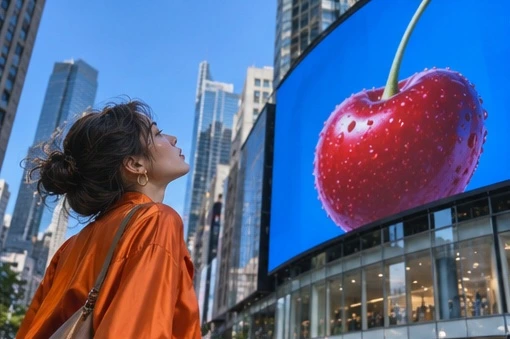
A billboard has to obey two geometries: the design printed on it and the wall receding into the street. Sequencer offers Flare for fast image work and Sunburst for detailed edits. Start with Flare to find the angle. Once the composition works, give that same frame to Sunburst for the client revision.
Choose Flare or Sunburst for the job
The two GPT Image 2.6 variants give the same brief different production priorities. Flare is the useful starting point for exploring a scene quickly. Sunburst suits a detailed revision where a face, product, or piece of lettering has to remain recognizable. Treat that choice as a working strategy, then compare the actual outputs for your assignment.
Sequencer supports still-image generation and editing with up to sixteen references. Output dimensions and quality are separate decisions: a wider canvas changes the composition, while a higher quality setting changes the generation effort and quote. For the billboard brief, choose the final layout first so later revisions can be compared at the same crop.
Choosing a GPT Image 2.6 variant
Task
Starting choice
Review priority
Explore a campaign
Flare
Framing and visual direction
Revise an approved frame
Sunburst
Preservation of surrounding details
Compare both variants
Same prompt and references
Accepted output and total effort
Sequencer settings
GPT Image 2.6 settings in Sequencer
Setting
Available options
Variants
GPT Image 2.6 Flare and Sunburst
Mode
Image generation or editing
Reference images
Up to 16
Build a controlled billboard edit
Select GPT Image 2.6 Flare in the image studio. Use an approved street photograph as the main reference and choose output dimensions that preserve its framing.
Describe the replacement subject and identify the billboard surface. Name the details that establish the original shot, including the aluminum frame, street lighting, and the pedestrian looking upward.
Generate the first revision and inspect the entire frame. Compare the billboard corners, the person, and the street furniture with the reference before judging the new advertisement on its own.
Try Sunburst with the same prompt, source image, dimensions, and quality setting when preservation needs closer attention. Save both versions with their settings so the comparison answers a specific production question.
Try the prompt
Replace only the photograph on the billboard with a single ripe cherry. Keep the aluminum frame, afternoon reflections and the pedestrian’s eyeline.
Inspect the billboard corners and the pedestrian together. A convincing new advertisement can still break the shot if its subject no longer appears to be looking at it. The Sequencer workflow here uses still-image generation and editing.
Make the edit belong to the photograph
A replacement image should sit on the same physical plane as the original print. Follow the billboard edges into the distance, check whether its brightness agrees with the sun, and look for reflections or shadows that explain the surface. A sharp cherry against a soft street can work if it reads as a printed advertisement at that distance.
Keep revision requests narrow once the geometry works. Adjust the cherry size, print contrast, or highlight direction individually. Review at both the full frame and the delivery crop, because the pedestrian’s eyeline may become the strongest clue that the new image belongs in the scene. Include all rejected revisions when comparing the cost of the two variants.
Choose dimensions for the actual placement
GPT Image 2.6 in Sequencer offers explicit pixel dimensions across square, portrait, landscape, and very wide formats. Choose the shape for the placement before deciding how large the final file should be. A square campaign image, a portrait mobile story, and a wide website hero require different arrangements of the same subject. A larger square does not automatically solve the composition of a wide banner.
For a billboard replacement, preserve the source photograph’s overall framing. Ask the replacement artwork to fit the billboard plane within that photograph. Changing the output shape and changing the artwork at the same time introduces two different causes for a shifted frame. Once the edit is approved, make a separate adaptation for another placement with a clear instruction about what can move.
Use the actual design as a preview surface. Add the headline, navigation, or caption that will accompany the image. Check the pedestrian and billboard at a small display size and at full resolution. This catches a common approval problem: a beautifully detailed edit can still leave too little room for the interface or message that surrounds it.
Organize references for a precise revision
Give the source photograph the clearest role in the request. It defines camera position, perspective, people, and existing light. A second image can define the replacement product or artwork. A third can explain a material or color treatment. Describe these roles in plain language and remove references that contradict the intended view. The sixteen-image capacity is most useful when the set is organized.
Before editing, list the details that establish the original shot. For the street scene, those might be the billboard frame, the person’s position, the storefront, the curb, and the direction of the afternoon shadows. Your instruction can name the important ones without describing every pixel. Keep an untouched source file so the comparison has a reliable starting point.
Review preservation as its own task. Compare the output and source at the same scale, then inspect the replacement region more closely. If the new artwork is convincing but the person changes, tighten the instruction about the pedestrian and reduce other requested changes. If the product shape changes, improve the product reference. Those are different failures and benefit from different revisions.
Prompt examples for three production tasks
•
Packaging revision: In the supplied studio photograph, change the front label from white to pale yellow. Preserve the bottle shape, cap, printed wording, camera angle, and shadow. Keep the yellow consistent across the curved paper surface. Compare the wording character by character and inspect the boundary between label and glass after generating.
•
Seasonal campaign: Keep the referenced ceramic mug, table position, and camera framing. Replace the background flowers with a small arrangement of autumn leaves. Maintain soft window light from the left and leave the upper right clear for a headline. Review the mug handle and table shadow so the scene still belongs to the approved campaign.
•
Layout adaptation: Turn the approved landscape scene into a portrait composition. Keep the same person, wardrobe, and billboard artwork. Extend the street above and below as needed, with the person in the lower third and the billboard fully visible. Check the result inside the final mobile layout before accepting the new composition.
Fix the cause of a weak edit
When the replacement looks pasted on, describe its physical relationship to the scene. Name the surface angle, print material, local contrast, and reflections that belong on that surface. When the edit changes too much of the photograph, shorten the change request and identify the scene features that must carry through. Asking for a new visual style across the entire frame can conflict with a request to preserve the original photograph.
When lettering fails, separate the text requirement from the visual description. Quote the wording, identify each line, and say where it sits. For an advertisement that needs frequent copy revisions, keeping final typography in an editable layout can simplify approval. Use generated lettering when the text is part of the physical scene and inspect it as carefully as any other product detail.
Compare Flare and Sunburst with the same source, request, and dimensions. Record the selected settings and current quote rather than assuming the names imply a fixed price order. The useful measure is how much work remains before approval. A fast draft that already meets the brief can be the right delivery, while a difficult revision may justify another variant.
Deliver the image with its revision history
Save the approved original, edited file, and prompt together. Name versions by the actual change, such as cherry size or label color, so an editor can identify the decision without reopening every image. Keep notes on which reference supplied the product and which supplied the environment. This makes a later campaign variation much easier to reproduce.
This Sequencer guide covers still images and image edits. Plan animation or a vector deliverable as a separate workflow with its own output requirements. For a motion placement, approve the still composition first and specify which parts should move. For a graphic that must remain editable as paths or live type, confirm that requirement before choosing the final production method.
Common questions
Should I always use Sunburst for final images?
Choose the version that meets the brief. Sunburst is a useful candidate for precise revisions, but an approved Flare result can already be suitable. Compare preservation, delivery size, and the work still required before making the final choice.
How many references should I add?
Use the smallest set that clearly defines the task. Up to sixteen are supported, but each should have a clear role, such as the source photograph, the replacement product, or a material reference. Conflicting crops and lighting can make the brief harder to interpret.
Can I use this workflow for an animated placement?
Approve the still image first, then plan the motion with a video model that supports the required inputs. Check the resulting framing, duration, and output format for the placement. This image workflow covers still generation and editing.