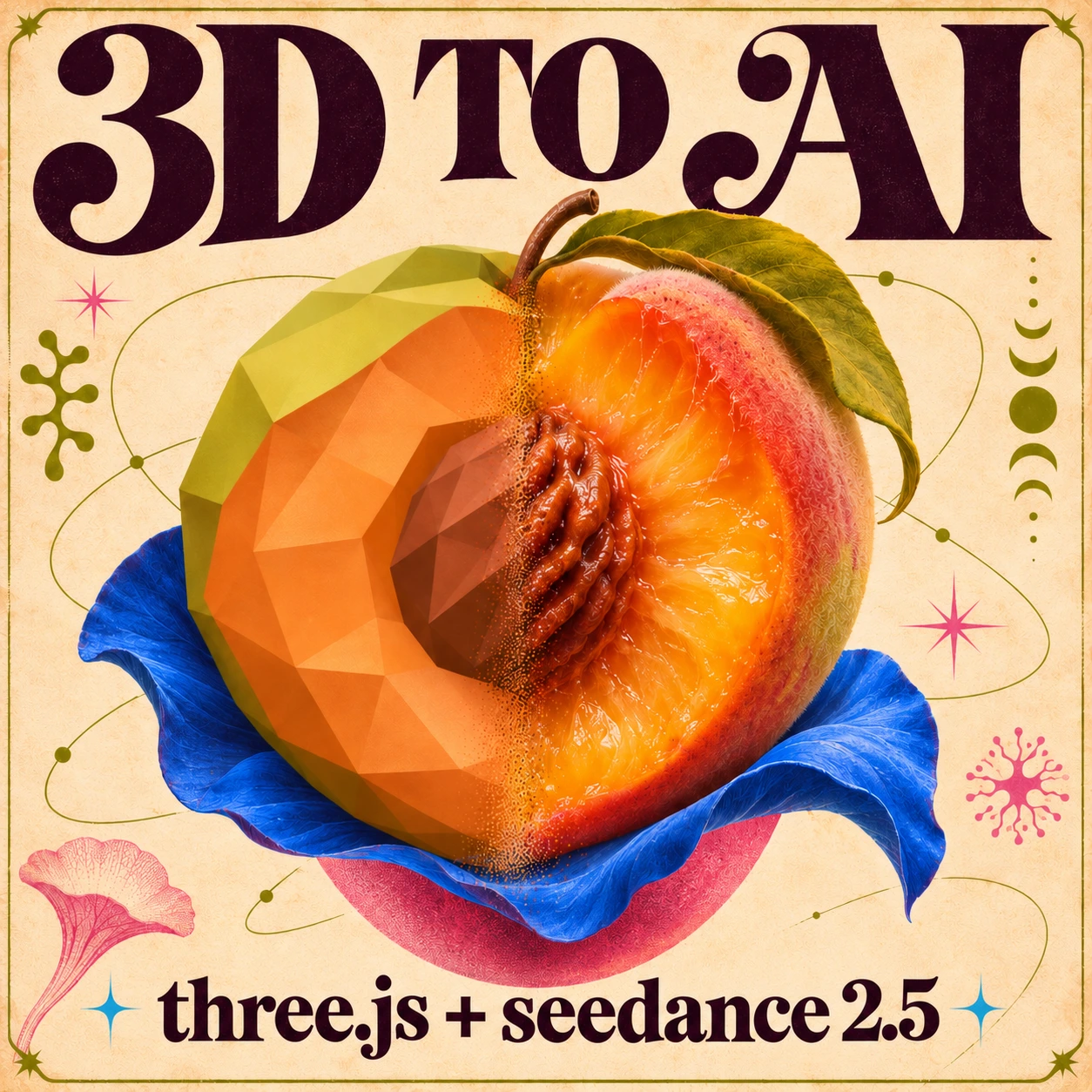
Build 3D objects and animate them with Claude Sonnet. Export the motion, map its timing with Gemini, and turn a simple render into a hyperreal film with Nano Banana Pro and Seedance.
Concept artwork. The exercise below builds a 10-second peach opening and turning in a locked camera shot.
You will use Claude Code with Sonnet 5.5 (the latest Sonnet checked November 9, 2026), Gemini 3.8 Flash for video analysis, Nano Banana Pro for the opening image, and Seedance 2.5 in Sequencer. Have Node.js and FFmpeg available for the Three.js export. Ask Claude to help install any missing tools.
1. Build the objects and animation with Sonnet.
Open a new project folder in Claude Code and choose Sonnet 5.5. Paste the build prompt. It asks Claude to create editable geometry, animate the peach, and provide a browser preview plus a video exporter. Review the preview and refine the shape, opening distance and timing before rendering.
2. Export the motion video and first frame.
Ask Claude to run the export command it created. Keep motion-reference.mp4 and first-frame.png together with the project. The target is a square 1080 × 1080 H.264 video, 10 seconds at 30 fps. The PNG must come from frame zero of that same animation.
Play the exported file from start to finish. Check that both halves stay in frame, the pit stays attached to the right half, and the opening, turn and final hold are visible. Correct any intersections in Three.js and export again before continuing.
3. Extract the timestamps with Gemini 3.8.
Open Google AI Studio, choose Gemini 3.8 Flash, and upload motion-reference.mp4. Paste the analysis prompt to turn the visible action into a timestamp table. A single still provides composition; the video provides timing. Compare Gemini’s estimates against playback and keep the corrected table for your final prompt.
4. Generate the opening image with Nano Banana Pro.
In Sequencer, choose image generation with Nano Banana Pro. Attach first-frame.png as the image reference and paste the prompt below. Generate a square image, then compare its framing and object positions with the source frame. Save the version that preserves the opening pose as start-frame.png.
5. Combine the motion and appearance in Seedance 2.5.
In Sequencer, choose video generation with Seedance 2.5. Attach motion-reference.mp4 as Reference Video and start-frame.png as Reference Image. Choose 10 seconds, 1:1, and an available output resolution. Use the reference labels shown by your generator in the prompt below, replacing [Video1] and [Image1] if needed.
The opening image goes in Reference Image for this combined workflow. Sequencer’s Seedance 2.5 configuration separates the Start Frame and End Frame inputs from reference media. The prompt requests the opening composition, while the video guides motion; the generated opening may vary.
Replace the sample timing with the timestamps you reviewed in step 3. Keep the reference video attached so Seedance can follow the movement directly. Turn off generated audio for this silent exercise, review the generation cost, and generate.
6. Compare the result and download the film.
Play the guide and result side by side from the same starting point. Check the opening at 2 seconds, the turn at 5 seconds, and the settle at 8 seconds against your reviewed timestamps. Confirm two halves, one pit, a stable camera and consistent materials on the newly revealed surfaces. Download the finished video when the action reads clearly. Revise the Three.js guide to change motion, or the Nano Banana image to change the look.
This is a prompt-based walkthrough with a planned example timeline. A complete Claude → Gemini → Nano Banana Pro → Seedance run has not been verified for this lesson. Review the exported clip and generated results at each handoff.