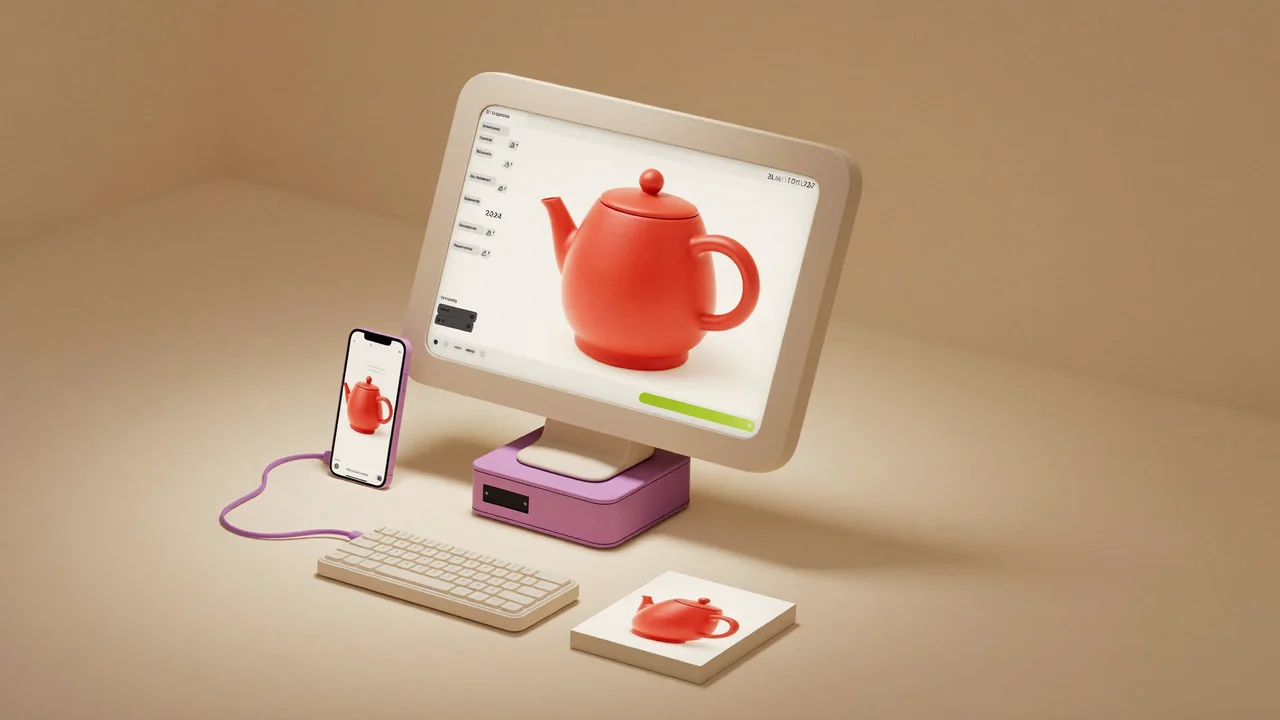
Connect Diffusers or ComfyUI to your computer, then generate from Sequencer on any device.
Available on Mac and in the Windows preview. Managed Diffusers on Mac requires Apple silicon.
1.
Install the desktop app
Open Integrations → Apps and choose your platform. On Mac, unzip the download and drag Sequencer into Applications. On Windows, run the preview installer. Open Sequencer and sign in.
In the desktop menu, choose Models → Add Local Models. Pick Diffusers for image models from Hugging Face, or ComfyUI for saved workflows.
Diffusers
ComfyUI
Choose Connect Diffusers → Install for me → Install Diffusers. Once installed, select Continue → Run connection test → Add a model.
Add an image model
Search for BK-SDM Tiny, a compact model for a first test (about 1.7 GB). Select the repository below, review the download, then choose Add to library → Download. Wait for Use to appear.
Choose Use beside your model, or select it under Local models in the image picker. For BK-SDM Tiny, start at 512 × 512, paste the prompt below, and select Generate. Progress and the result appear in your generation feed.
A small red ceramic teapot on a pale studio background, soft natural light, product photograph.
Choose Save to Workspace to keep the result in your workspace, or This device only to save it on your computer.
4.
Use it from any device
Remote generation turns on automatically when you add your first model. Open Models → Connections in the desktop menu to name your computer or turn sharing off. Your choice is remembered.
On your phone or another computer, sign in to the same Sequencer account and choose a workspace. Open the matching Image, Video or Audio page, select Local models → your model, and generate as usual.
Keep your computer awake, online and running Sequencer. It runs the model; progress and results appear in the workspace on your other device. Keep awake while plugged in helps during longer sessions.